The video of historic stone of kedarnath that came in front of temple and saved the temple. Anchoring by Subhash Goyal and Makhan Lal.A flood came on a large scale in Kedarnath area of uttrakhand. Many of villages got distroyed but nothing was happened to temple due to this stone.
Read more ...

Saturday, 10 September 2016

Saturday, 20 August 2016
Reliance jio available for all 4g smartphones
Now get a Jio SIM with unlimited data for 90 days with any 4G smartphone
After expanding the Jio Preview Offer for Samsung and LG 4G smartphones, Reliance Jio is extending the offer which offers free 90 days of unlimited data, calls and messaging to all 4G smartphones. We got it confirmed from the local Reliance Digital store.
This is definitely the biggest move by Reliance Jio since 4G smartphones have become more affordable now.
You no longer need to generate the code from the MyJio app in order to get your free sim. Code will be generated by them. You just walk in with your 4G phone and submit your KYC documents at a Reliance Digital / Mini store / Jio partner store to get your free Jio SIM card and you will get 90 days of unlimited 4G data, calls, SMS and access to Jio’s suite of apps.
VoLTE is required for calls but no mandatory and calls can be made through the JioJoin App. The companyrecently made the Jio Fi 2 wireless hotspot available for purchase without any invite and we got you an exclusive unboxing as well.

Tuesday, 9 August 2016


How to pass through your android device pattern lock
Many of us forgot our pattern lock in android mobile. With these tricks you can easily unlock your mobile.
Method 1:- Unlock Pattern Lock On Android Without Losing Data.
Required items.- Download Aroma File Manager.
- A memory card for android device.
- You android device either locked by pattern lock or password lock.
Step 1. After downloading Aroma File Manager,place it in your memory card (SD card). Then, insert the memory card into your locked android device.Step 2. Open Stock Recovery Mode with reboot your android device and pressing Power Key and Volume up key simultaneously. Different phones may have different methods to open stock recovery mode so if you face any problem Google it.Step 3. After entering into recovery mode use Volume+ and Volume- buttons to scroll up and down. For select use middle button.Step 4. From there click on “Install Zip from SD Card” and give path to install “Aroma File Manager” from SD card.Step 5. After installing, it will open in recovery mode.Step 6. From the Aroma File Manager navigate to settings >> go to bottom and click on“Automount all devices on start” and then exit.Step 7. Now again click on “Install Zip from SD Card” and give path to install “Aroma File Manager” from SD card.Step 8. After this you will get “Aroma File Manager” opened again.Step 9. Now navigate to Data Folder >> System Folder and find >> “gesture.key” or“password.key” for pattern lock or password lock respectively.Step 10. Delete that any one file and then exit aroma file manager and reboot your android device. After rebooting you will notice that password or pattern lock is not removed. But don’t worry draw any pattern and you will open your android device but remember or note that pattern becuase it will be saved.
Required items.
- Download Aroma File Manager.
- A memory card for android device.
- You android device either locked by pattern lock or password lock.
Step 1. After downloading Aroma File Manager,place it in your memory card (SD card). Then, insert the memory card into your locked android device.
Step 2. Open Stock Recovery Mode with reboot your android device and pressing Power Key and Volume up key simultaneously. Different phones may have different methods to open stock recovery mode so if you face any problem Google it.
Step 3. After entering into recovery mode use Volume+ and Volume- buttons to scroll up and down. For select use middle button.
Step 4. From there click on “Install Zip from SD Card” and give path to install “Aroma File Manager” from SD card.
Step 5. After installing, it will open in recovery mode.
Step 6. From the Aroma File Manager navigate to settings >> go to bottom and click on“Automount all devices on start” and then exit.
Step 7. Now again click on “Install Zip from SD Card” and give path to install “Aroma File Manager” from SD card.
Step 8. After this you will get “Aroma File Manager” opened again.
Step 9. Now navigate to Data Folder >> System Folder and find >> “gesture.key” or“password.key” for pattern lock or password lock respectively.
Step 10. Delete that any one file and then exit aroma file manager and reboot your android device. After rebooting you will notice that password or pattern lock is not removed. But don’t worry draw any pattern and you will open your android device but remember or note that pattern becuase it will be saved.
Method 2nd:- Unlock Android Pattern Lock
1. First of all Download Android SDK and here we will show you How To download and install Android SDK Tools.
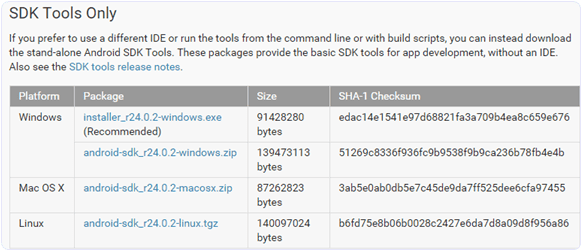
- Download and install Android SDK Tools for run ADB commands. Open the given page and then select platform according to you download and install it.
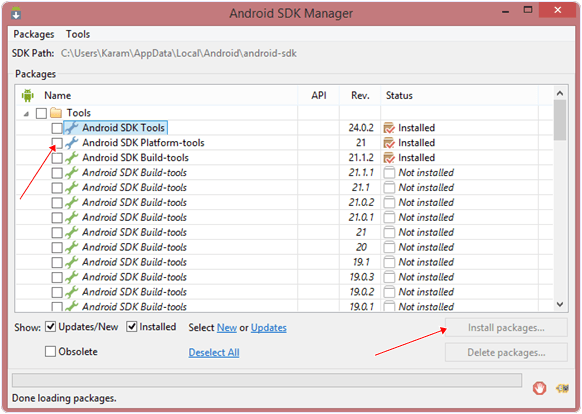
- After installing open it, unchecked the other packages and check Android SDK Platform-tools and then click on install packages according to the image given below.

2. So the other requirement is USB Debugging should be enabled before your android device was locked.
3. The process will probably not be helpful if you don’t have specific and compatible drivers for your phone. So you should be very careful While installing your device compatible drivers.
1. First of all Download Android SDK and here we will show you How To download and install Android SDK Tools.
- Download and install Android SDK Tools for run ADB commands. Open the given page and then select platform according to you download and install it.
- After installing open it, unchecked the other packages and check Android SDK Platform-tools and then click on install packages according to the image given below.
2. So the other requirement is USB Debugging should be enabled before your android device was locked.
3. The process will probably not be helpful if you don’t have specific and compatible drivers for your phone. So you should be very careful While installing your device compatible drivers.
Steps To Unlock Android Pattern Lock
Step 1. Connect your locked android phone with PC/Laptop via USB.
Step 2. Then, Open folder where you installed Android SDK Tools Users >> App Data >> Local >> Android >> Android-SDK >> Platform-Tools and then click on blank space hold shift and click right mouse button and select “open command window here”.

Step 3. It will open you command window. Then, you have to put some commands in the command window:-For checking your device is connected or not put command:-
ADB DEVICES

Then, put these commands:-
ADB SHELL
CD /DATA/DATA/COM.ANDROID.PROVIDERS.SETTINGS/DATABASES
SQLITE3 SETTINGS.DB
UPDATE SYSTEM SET VALUE=0 WHERE NAME=’LOCK_PATTERN_AUTOLOCK’;
UPDATE SYSTEM SET VALUE=0 WHERE NAME=’LOCKSCREEN.LOCKEDOUTPERMANENTLY’;
.QUIT
If above commands not working put:-ADB SHELL RM /DATA/SYSTEM/GESTURE.KEY
Step 4. Once you done the above steps, you have to reboot your android device. Now its all done.
After rebooting your device you will see the pattern lock disabled.So in this method USB Debugging should be enabled before lock because it is a must. If it is not enabled then you cannot proceed further steps.
Step 1. Connect your locked android phone with PC/Laptop via USB.
Step 2. Then, Open folder where you installed Android SDK Tools Users >> App Data >> Local >> Android >> Android-SDK >> Platform-Tools and then click on blank space hold shift and click right mouse button and select “open command window here”.
Step 3. It will open you command window. Then, you have to put some commands in the command window:-
Step 2. Then, Open folder where you installed Android SDK Tools Users >> App Data >> Local >> Android >> Android-SDK >> Platform-Tools and then click on blank space hold shift and click right mouse button and select “open command window here”.
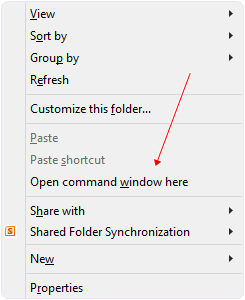
Step 3. It will open you command window. Then, you have to put some commands in the command window:-
For checking your device is connected or not put command:-
ADB DEVICES
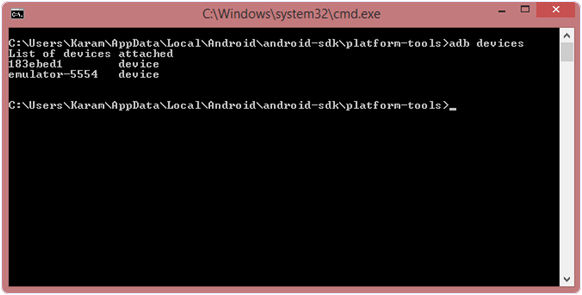
Then, put these commands:-
ADB SHELL
CD /DATA/DATA/COM.ANDROID.PROVIDERS.SETTINGS/DATABASES
SQLITE3 SETTINGS.DB
UPDATE SYSTEM SET VALUE=0 WHERE NAME=’LOCK_PATTERN_AUTOLOCK’;
UPDATE SYSTEM SET VALUE=0 WHERE NAME=’LOCKSCREEN.LOCKEDOUTPERMANENTLY’;
.QUIT
If above commands not working put:-
ADB SHELL RM /DATA/SYSTEM/GESTURE.KEY
Step 4. Once you done the above steps, you have to reboot your android device. Now its all done.
After rebooting your device you will see the pattern lock disabled.
After rebooting your device you will see the pattern lock disabled.
So in this method USB Debugging should be enabled before lock because it is a must. If it is not enabled then you cannot proceed further steps.
Method 3rd:- Unlock Pattern With Factory Settings (Data Will Lost)
Since, in the above methods we have used PC/Laptop, we downloaded software and we usedsome commands. But if you do not have a PC/Laptop or your device did not have USB Debugging enable, then you can follow this method.NOTE:- IN THIS METHOD YOUR ALL DATA WILL BE LOST. SO IF YOU DO NOT WANT TO LOSE YOUR DATA THEN DON’T FOLLOW THIS METHOD.
Step 1. First of all, Switch off your Locked Android Device.
Step 2. Then, boot your Android device into “Recovery Mode” using specific keys by holding power key and volume up key simultaneously.
Step 3. After opening Recovery Mode- Select “Factory Data Reset” option and give “Yes“.
- Select “Wipe Cache Partition” to wipe cache data.
Step 4. Then, Reboot your device.Step 5. All Done ! hence, your device will start from the scratch.Please use it only for personal pproblem not for hacking. For more ttricks, follow my blog and also please leave a feedback in comment section.
Since, in the above methods we have used PC/Laptop, we downloaded software and we usedsome commands. But if you do not have a PC/Laptop or your device did not have USB Debugging enable, then you can follow this method.
NOTE:- IN THIS METHOD YOUR ALL DATA WILL BE LOST. SO IF YOU DO NOT WANT TO LOSE YOUR DATA THEN DON’T FOLLOW THIS METHOD.
Step 1. First of all, Switch off your Locked Android Device.
Step 2. Then, boot your Android device into “Recovery Mode” using specific keys by holding power key and volume up key simultaneously.
Step 3. After opening Recovery Mode
Step 2. Then, boot your Android device into “Recovery Mode” using specific keys by holding power key and volume up key simultaneously.
Step 3. After opening Recovery Mode
- Select “Factory Data Reset” option and give “Yes“.
- Select “Wipe Cache Partition” to wipe cache data.
Step 4. Then, Reboot your device.
Step 5. All Done ! hence, your device will start from the scratch.
Please use it only for personal pproblem not for hacking. For more ttricks, follow my blog and also please leave a feedback in comment section.

Saturday, 30 July 2016
Pokemon go complete guide
I hope you all know about pokemon either in news or from your friend as it is getting popular day by day . It has a different concept from others as you have to move in real world. Before starting yiu need to know following things:
1. You need to turn on gps and mobile data to play the game.
2. Yiu need to have android mobile having version >4.4 or an iphone.
This blog icontains the basics of Pokémon games past — catching Pokémon, battling at Gyms, using items, evolving your creatures — with a crazy twist: You're doing it all in the real world. That means instead of tapping or using a D-pad to tell your virtual avatar where to go to find Pokémon, you're actually walking.
While Go, you'll want to get the hang of how the game works. That means knowing the world, its mechanics, and how to access your Pokédex, Items nd more.
After signing up, you'll want to customize your digital avatar. You can choose your gender, eye color, hair color, shirt, hat, pants, shoes, and the style of your backpack. Once you've done so, you'll enter the main area of the game: The Pokémon Go map.
Essentially, the main area of the game is a brightly-animated version of Google Maps. You'll see (unmarked) roads, rustling grass (marking Pokémon in the area), and local landmarks disguised as PokéStops and Pokémon Gyms. As you move in the real world, your avatar does too. Pokémon will pop up on the map with a small vibration as you walk along, and if you tap on them, you can try to capture them.
- Player icon: Your player icon is at the bottom left corner of the screen. Tap on this to view your character's information, as well as a list of in-game achievements.
- Backpack: This is where all the items you pick up on your journey are stored.
- Pokédex: Your index of Pokémon, complete with information on all the species you've already caught.
- Pokémon: Here, you can see all the Pokémon that are in your possession.
- Nearby Pokémon: Tap on the bottom right corner of the screen to seewhile.i t will give you tge distance of the monster.
- If thereare three footprints it means monster is far and if it is one then monster is very near to you.
What you need to know about Pokémon
Whether you've never caught a Pokémon before or you've been collecting these creatures since childhood, you'll quickly get introduced to the Pokémon of this world after starting the game. (Heck, the very first screen you see after logging in is of a giant Gyarados menacing an unaware player, as a warning to stay alert while playing.)
At the start, you'll only be able to catch Nintendo's original lineup of Pokémon — those found in the Red, Blue, and Yellow titles — though we expect expansions to appear as the game grows and works out the bugs.
Pokémon come in variety of types, shapes, and sizes: Of the over 100 Pokémon available for capture, you'll find creatures of the Fairy, Psychic, Electric, Grass, Water, Ghost, Bug, Rock, Ground, Poison, Flying, and Normal type. We haven't spotted any Legendary Pokémon quite yet, but that doesn't mean they aren't out there hidingg.
Each geographical area has a specific Pokémon type, and some creatures are more difficult to find than others. If you keep running into the same group of Pidgey and Caterpie, don't lose hope: You need to travel around your area to find all the Pokémon. You can head to local lakes, ponds, or beaches to find Water-type Pokémon, for example, or wait until the evening to have a better chance at grabbing a Fairy type.
How to catch your first Pokémon
As with all Pokémon games, when a trainer begins their first journey, they're given a choice of which Pokémon to start with. After you've finished customizing your avatar, three Pokémon will appear in front of you. You can choose from Bulbasaur, Charmander, or Squirtle; after capturing one, the other two will disappear.
But wait: There's more. If you walk away from the original three four times, you'll get a fourth starter Pokémon option: Pikachu.
How to catch other Pokémon
Once you've gotten started with the game and captured your first Pokémon, it's time to go hunting for some others.
You can find wild Pokémon by physically walking around your area. Stick to populated areas: Pokémon appear most often near PokéStops. The more PokéStops nearby, the more creatures should appear. Try visiting locations with a lot of public art; tourist spots or malls are great starting points.
As you walk around in the real world, your avatar moves along the map using GPS. When a Pokémon is close enough to capture, it pops up on your screen. Since walking around with your eyes glued to your phone is a bit of a safety hazard, the game is designed to allow you to keep your eyes free while you wander. You can keep your phone at your side while you walk; when you are near a Pokémon, you'll get a notification in the form of a vibration and (if your sound is turned on) the Pokémon's unique call.
You can then move to a safe location (if you were walking along a road, for instance), and tap the visible Pokémon to capture it. Tapping zooms in on your avatar and launches an augmented reality experience with the Pokémon dancing around amidst your surroundings. If you don't see it on the screen immediately in front of you, move your device around until it appears. (There are arrows on the side of the screen to guide you in the right direction.)
If AR makes you nauseous or you don't want your battery drained, you can always turn the feature off in the upper right corner.
Once you've found the Pokémon, it's time Mto throw a Poké Ball to try and capture it. You "throw" in game by tapping and holding on your Poké Ball; a glowing, shrinking ring appears then around the Pokémon. When the ring gets to its smallest, you want to flick your Poké Ball directly toward the creature (with the aim of bopping it on the head) and release your finger; if successful, you'll capture a pokemon in your bag.
Not all Pokémon enjoy being inside itty bitty areas, however, and some may jump out of your Poké Ball after one or two shakes. If this happens, you'll want to throw another Poké Ball to try and recapture it — or, if you're running low on supplies, run away.
As you progress in the game, you'll encounter stronger Pokémon that require a more powerful Poké Ball (or Razz Berries, which lull the Pokémon to complacency). If the ring surrounding the Pokémon is green, you should have no problem capturing it; if it's yellow, you have a fifty-fifty chance; when you see a red ring, you'll need to use multiple Poké Balls, more powerful Poké Balls, or Razz Berries to have a remote chance of catching it.
More than one player can catch the same Pokémon; if you and your friend see the same Pokémon on the street, you can both grab it for your separate collections.
You can also use special items to attract Pokémon to your location: You can use incense to lure Pokémon to you personally for 30 minutes, or — if you're at a PokéStop — use a Lure Patch. This will bring Pokémon to the stop; every player there can catch them for the next 15 minutes.
How to get cool items from PokéStops (and explore the world around you, too
PokéStops are important or iconic places around your area: They may be special benches with dedication plaques, permanent art installations, or historic landmarks. They'll never be something as mundane as a stop sign, nor will they be in a location that is not accessible to the public — like something inside a private building, or beyond a locked gate.
PokéStops are an easy way to collect items, experience, and Poké Eggs (which hatch into Pokémon with the help of incubators, which we'll talk about later).
They're indicated on your map by tall poles with blue cube atop them: You can tap one even if you're not in range to find out which landmark they're associated with, but you won't be able to check in until you're close to the PokéStop.
When a PokéStop is within range, the blue cube will transform into a spinning disc, which you can tap on to visit. Inside, you'll see the PokéStop symbol with a disc in the middle that displays the location's photo; you may also get some historical information about the monument, if you're into that sort of thing.
Swipe the disc to spin it, and you'll be rewarded with a variety of items. Items can include Poké Eggs, Poké Balls, healing potions, and more. As you increase in levels, you unlock new items to collect.
After you visit a PokéStop, the blue pole will change to purple, and you'll be unable to visit for at least 10 minutes.
How to use items in Pokémon Go
Items are a must-have in this game: You need Poké Balls to capture Pokémon, Incense to lure them, and potions and revives to heal them after Gym battles.
Like many games of this era, you canpurchase many of these items with real-world currency as transformed into PokéCoins — but you don't have to. You can stock up on most items just by visiting PokéStops. (About the only things you can't find at stops are the Bag and Pokémon Storage upgrade.)
You never know what you're going to come across at a PokéStop, but it's almost always helpful. Each item has a specific use in the game; most fall into either the "capture" or "recovery" category, helping you capture new Pokémon or aiding your current Pokémon in healing after Gym battles.
You can also find incense, which lures Pokémon to you; Lucky Eggs, which grant you double experience for 30 minutes; Lure Patches, which draw Pokémon to a PokéStop; Razz Berries, which make it easier to catch more of the same species of Pokémon; and Poké Eggs, which can hatch into new Pokémon.
What's the deal with eggs and incubators?
As you move through the world collecting items from PokéStops, you might just luck out and pick up an Poké Egg. These eggs will eventually become Pokémon in their own right, but they need a little bit of incubation — and a lot of steps — to make that happen.
When you pick up an egg, you meed to place it in an incubator to get the hatching process going. You start the game with a single, unlimited-use incubator, but you can purchase more if you want to hatch several eggs at once.
Once the egg is incubated, you'll need to physically walk — sorry, would-be cheats, but driving won't work — a certain distance before the egg will hatch. Depending on the rarity of the Poké Egg you've found, that could be as little as 2 kilometers, or up to 10 kilometers. And yes, you will have to walkwith the app open for those steps to register. RIP battery life.
How to level up and evolve your Pokémon
Evolution doesn't work the same way in Pokémon Go as it does in the classic games: Pokémon don't evolve or level up after battles with other Pokémon trainers.
Instead, you must catch duplicates of the same Pokémon, which drop Candy and Stardust. You can also send unwanted Pokémon to the Professor for a single candy, but be careful. Once a Pokémon is sent to the Professor, you can never get that version back.
Once you have gathered enough of a single type of Pokémon, you'll be able to use the Candies to evolve it. Candy is Pokémon-specific, and can be used to level up any Pokémon in that evolutionary chain. For example, you can use Candy that Charmander has dropped to evolve a Chameleon.
In addition to giving you the next evolutionary stage of a Pokémon, evolving will raise a Pokémon's CP and HP. CP represents how strong a Pokémon's attacks are while HP represents how much damage a Pokémon can take. Stats may also be increased by combining Candy and Stardust.
How to join a Gym team and battle other players
When you reach level five and visit a Gym, you'll be asked to join one of three color-coded teams: Instinct (Yellow), Mystic (Blue), or Valor (Red). They're color-coded based on the original U.S. titles – Pokémon Red, Pokémon Blue, andPokémon Yellow: Special Pikachu Edition.
Unlike Nintendo's games, the team you choose doesn't affect the type of Pokémon you come across in the wild, but it does matter for Gym battles. After picking a team, you'll join millions of other players around the world; each team will work together to become the most successful. As with Niantic's previous title, Ingress, teams can turn Pokémon Go from a single-player experience to a group sport.
Teams are how you join up with your friends to make a dent on the world. You and your team will take over and level up Gyms; when you possess a gym, you get Pokécoins and Stardust, which can help you level up and evolve your Pokémon.
Much like PokéStops, Gyms are actual landmarks out in the world, and they are where all Pokémon battles happen. You can claim them for your team, or help level up a Gym already claimed for your team to build up its prestige. Trainers can take over an unoccupied Gym and claim it for the Instinct, Mystic, or Valor team. If your team's color is in control of a Gym, you can train your Pokémon inside, one at a time. If a Gym is held by an opposing team, you'll need to battle the Pokémon standing guard to lower its prestige and have a chance of taking it over.
Gyms earn prestige when you train your Pokémon in one that your team controls, and lose prestige when opposing teams win battles against the Pokémon left there. Your team's Gym will earn experience points to gain prestige, which will amount to leveling up the Gym. As its levels increase, so do the number of Gym Leaders. For example, if your Gym has reached level three, you can have three Gym Leaders in it, which makes it harder for opposing teams to overthrow.
Entering a Gym triggers a fun mini-game wherein you attack the opposing Pokémon, and dodge their attacks. While battling, you have three options: You can tap the screen to attack, press and hold the screen to initiate a special attack, or swipe left or right to dodge an opponent's attack. Just as with traditional Pokémon games, the goal is to reduce your opponent's Pokémon to zero hit points.
To steal control of a Gym that is already occupied by an opposing team, you must win in battle against all of the Gym Leaders' Pokémon in it. Beating leaders in the Gym will lower its prestige, but it will take multiple battles against the same Pokémon in order to occupy it for your team.
When you occupy a gym, you not only help your team — but you earn PokéCoins, too! Every 20 hours, you can visit the Shop and redeem your coins, based on how many gyms you currently occupy.
How to level up as a trainer
Pokémon Go isn't just about taking care of and leveling your Pokémon — it's about your experience, too. You can gain levels as a trainer by catching Pokémon, exploring PokéStops, and battling at Gyms.
As you hit higher levels, you'll be able to fight at gyms, gain access to higher-quality PokéBalls and other items, and help strengthen your Pokémon.
If you have a higher trainer level than the players at a rival Gym, you've got a better chance of taking it over. This is especially true when it comes to fighting multiple trainers to take over a single Gym.
Thanks for reading. Please follow the blog for more.
Monday, 25 July 2016
Free airtel data trick
Hello, I am going to post a trick to get free airtel data. With this trick you can use 250 MB per day. Change proxy server every second day
Not works. In blocked Sims
You can use 250 MB per day. All Vpn tricks you have many limitations or disconnect problems but with this trick you can use 250 MB per day without any disconnect problem.Presently completely working with no speed capping. With this Airtel free 3G Internet trick you can enjoy unlimited free 3G data on your Airtel sim. So why all are you waiting for? Just follow my steps and use this.
HOW TO USE This Airtel Vpn Trick
1. First of all you need to Download an App called Psiphon Pro Light handler
2. Now install this App in your Android phone
3. Open and make below setting
4. Enable – Remove Port
5. Proxy type – Real host
6. Proxy server – 125.21.246.113 or 125.21.246.116

7. Now click on Save
8. Select Whole Mode Device and Start
9. Now Allow Connection
10. Finally now wait for 1 or 2 minutes
11. You will connected now start browsing and downloading
Points to Note:
1. Limit upto 250 MB per day
Change proxy server every second day
Not works. In blocked Sims
Proof of Working:
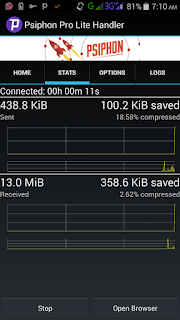
Not works. In blocked Sims
You can use 250 MB per day. All Vpn tricks you have many limitations or disconnect problems but with this trick you can use 250 MB per day without any disconnect problem.Presently completely working with no speed capping. With this Airtel free 3G Internet trick you can enjoy unlimited free 3G data on your Airtel sim. So why all are you waiting for? Just follow my steps and use this.
HOW TO USE This Airtel Vpn Trick
1. First of all you need to Download an App called Psiphon Pro Light handler
2. Now install this App in your Android phone
3. Open and make below setting
4. Enable – Remove Port
5. Proxy type – Real host
6. Proxy server – 125.21.246.113 or 125.21.246.116

7. Now click on Save
8. Select Whole Mode Device and Start
9. Now Allow Connection
10. Finally now wait for 1 or 2 minutes
11. You will connected now start browsing and downloading
Points to Note:
1. Limit upto 250 MB per day
Change proxy server every second day
Not works. In blocked Sims
Proof of Working:
Please also visit this.How to get reliance jio sim for free on any mobile with unlimited data
Saturday, 23 July 2016
How to get reliance jio sim for free on any mobile
Reliance Jio finally launched but its not yet open to all. Officially its only available for some selected Samsung Devices and All Lyf phones. Here in this tutorial we are going to guide you about How To Activate Jio Preview offer in almost all Android Devices. Yes you read it right, now you can activate Reliance Jio Preview Offer which includes unlimited data and calling feature for next 3 months in all Android devices whether its Samsung or any other brand. So let's proceed further and check out this awesome way to activate Reliance Jio Preview offer.


Steps To Follow :
1. Download MyJio app from Here .
2. Once you download, open it and click on " Install All " button.
3. Now wait for few minutes & let it download all 10 apps of MyJio app.
4. Now fully close MyJio app.
Here Comes The Tricky Part......
5. Once you download all apps, Disconnect your Internet connection whether its Wifi or Mobile Data.
6. Now open MyJio app ( Do NOT turn ON Internet connection).
7. Once you open MyJio app, click on Open just beside MyJio.
8. Once you click on Open, you can see Get Jio Sim option
9. Boom !! Now turn ON your Data and fill all required details.
10. Finally visit your Nearest Reliance Jio Store and show them your Barcode for Jio Sim.
Note : This offer is not officially launched yet for all phone so Reliance agents might refuse. So if you have convincing power then try to convince them and grab your Jio Sim :D
Do not forget to comment down if this trick works for you along with your Device Name.
Please subscribe to my blog and share it.
Subscribe to:
Posts (Atom)